Apps
Wheelhouse.app
The native Mac app. The window, the menu bar, notifications you answer from the banner, and ⌥⌘K from any app.
On the Mac, Wheelhouse is a native app, written in SwiftUI. It has the web
app’s look and words in the system’s own controls. It follows the hub on this
Mac, so everything you do in it is on the same record as the web app, the
phone and wh.
just setup puts it in ~/Applications. See Install.
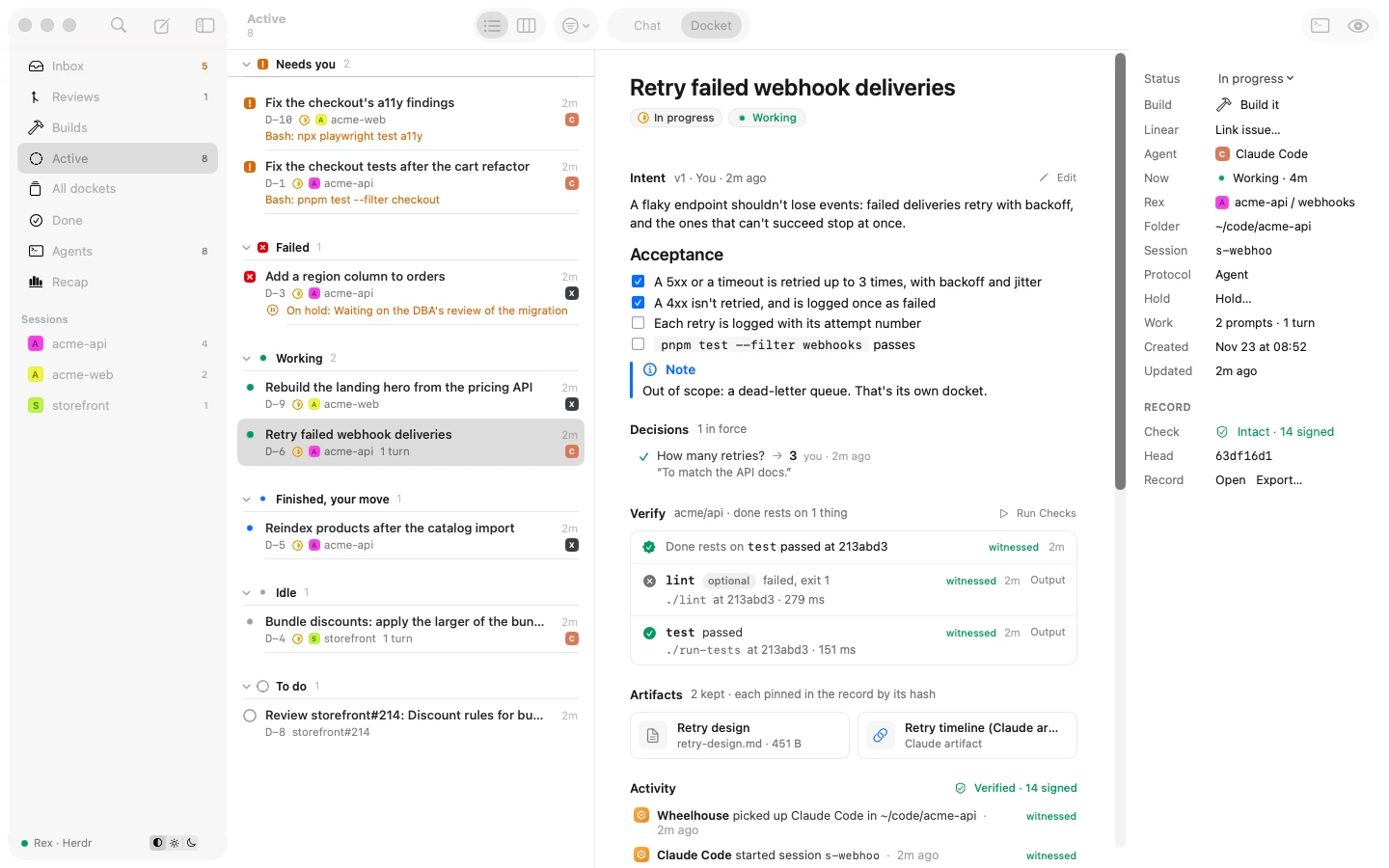
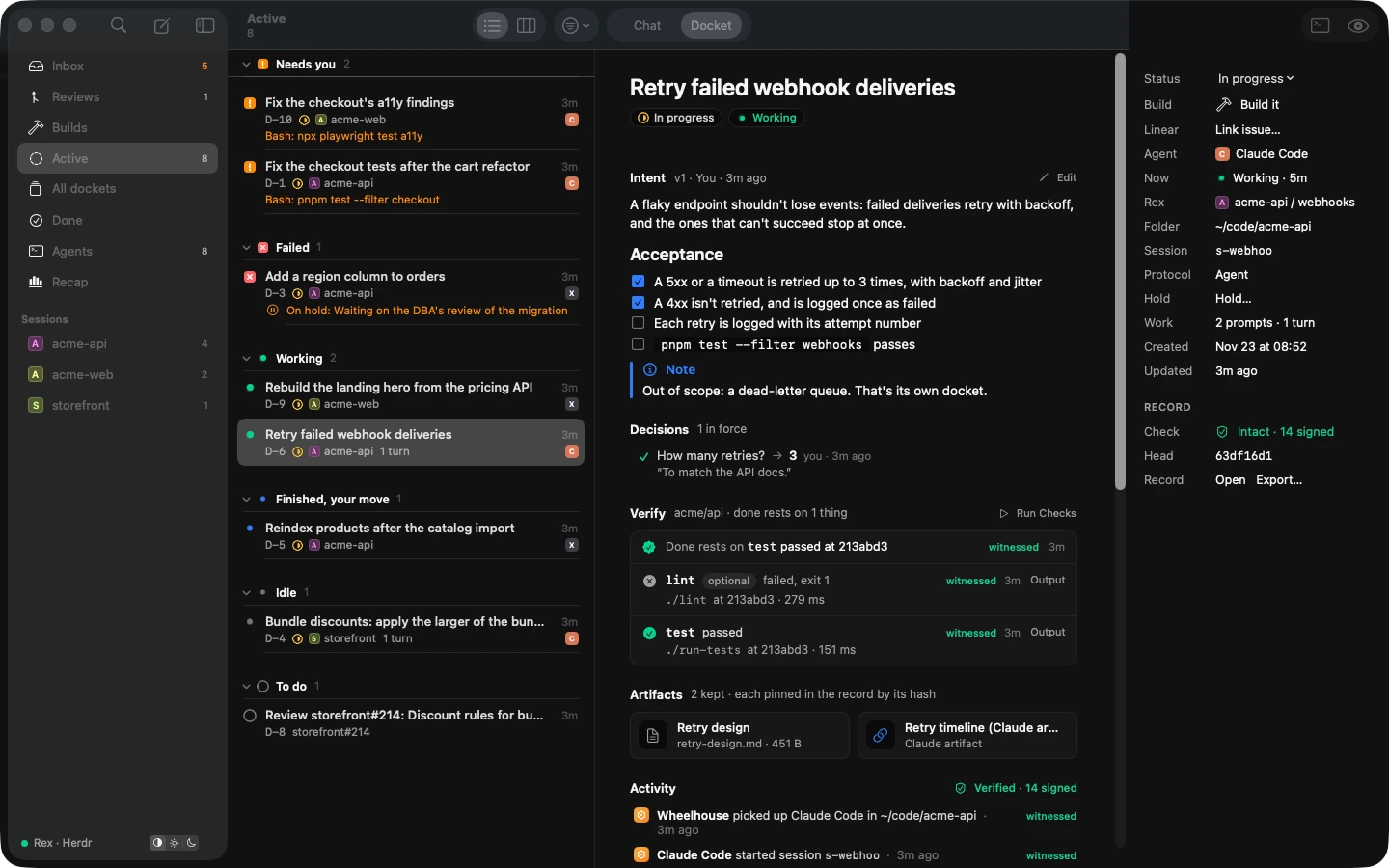
The window
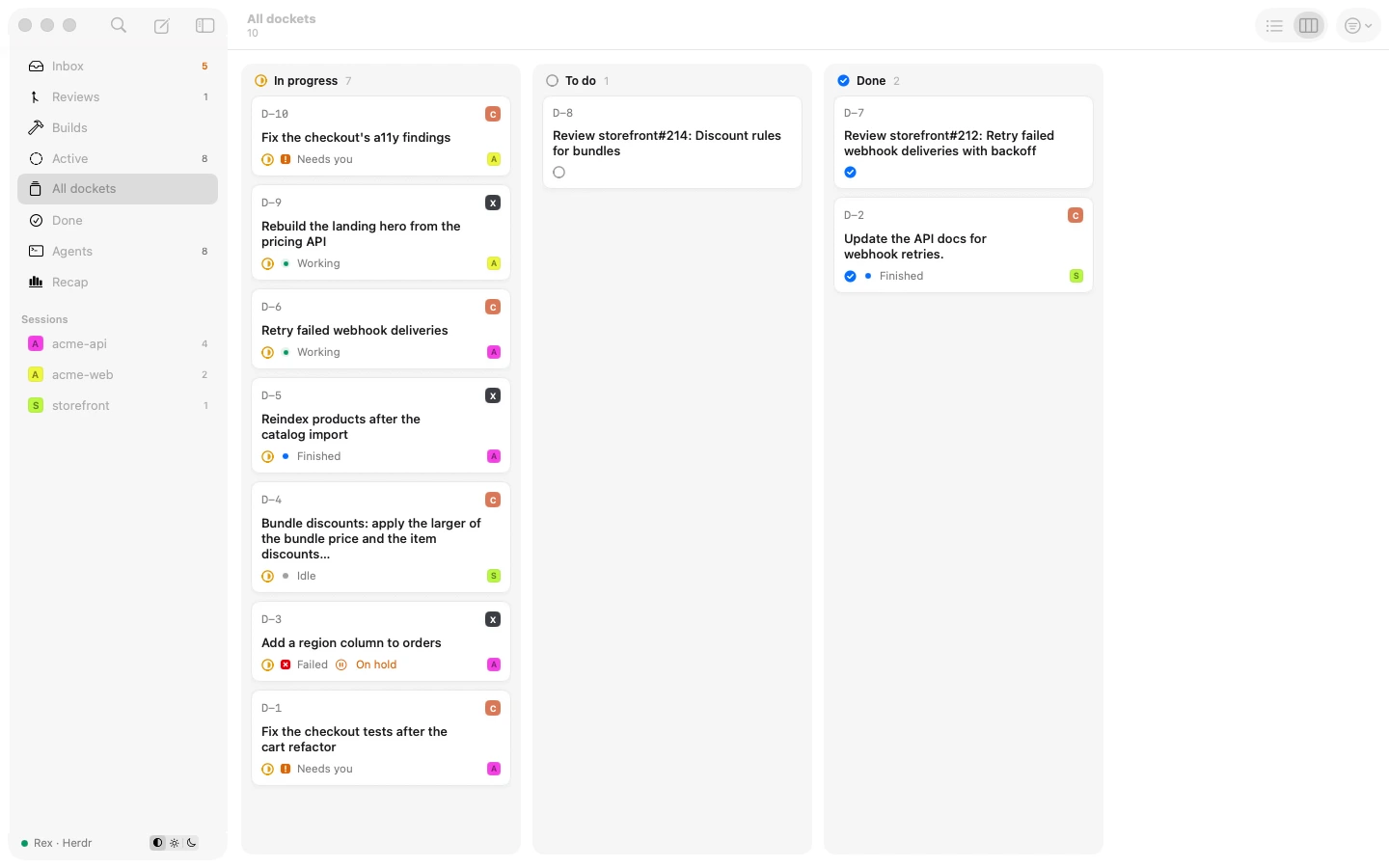
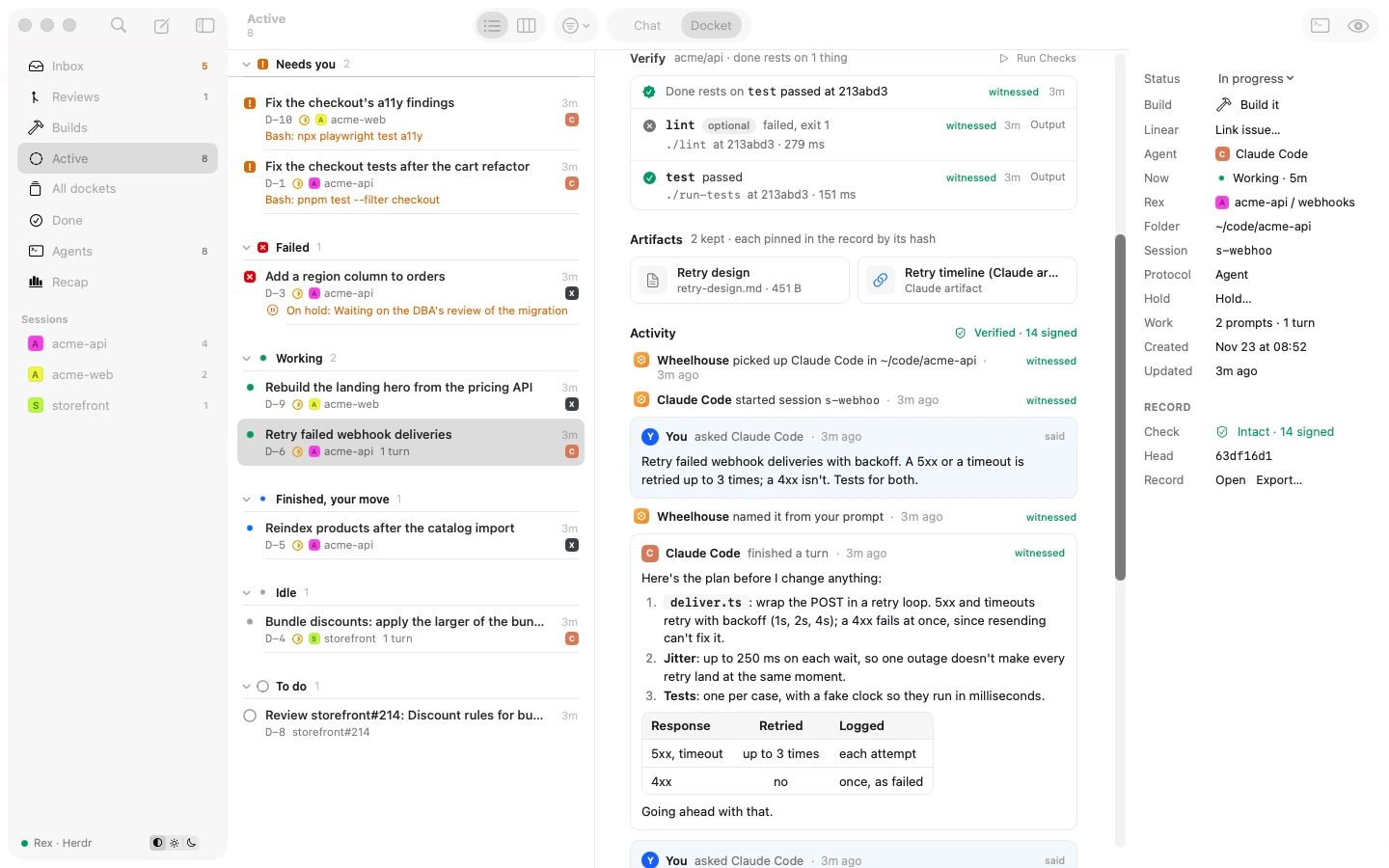
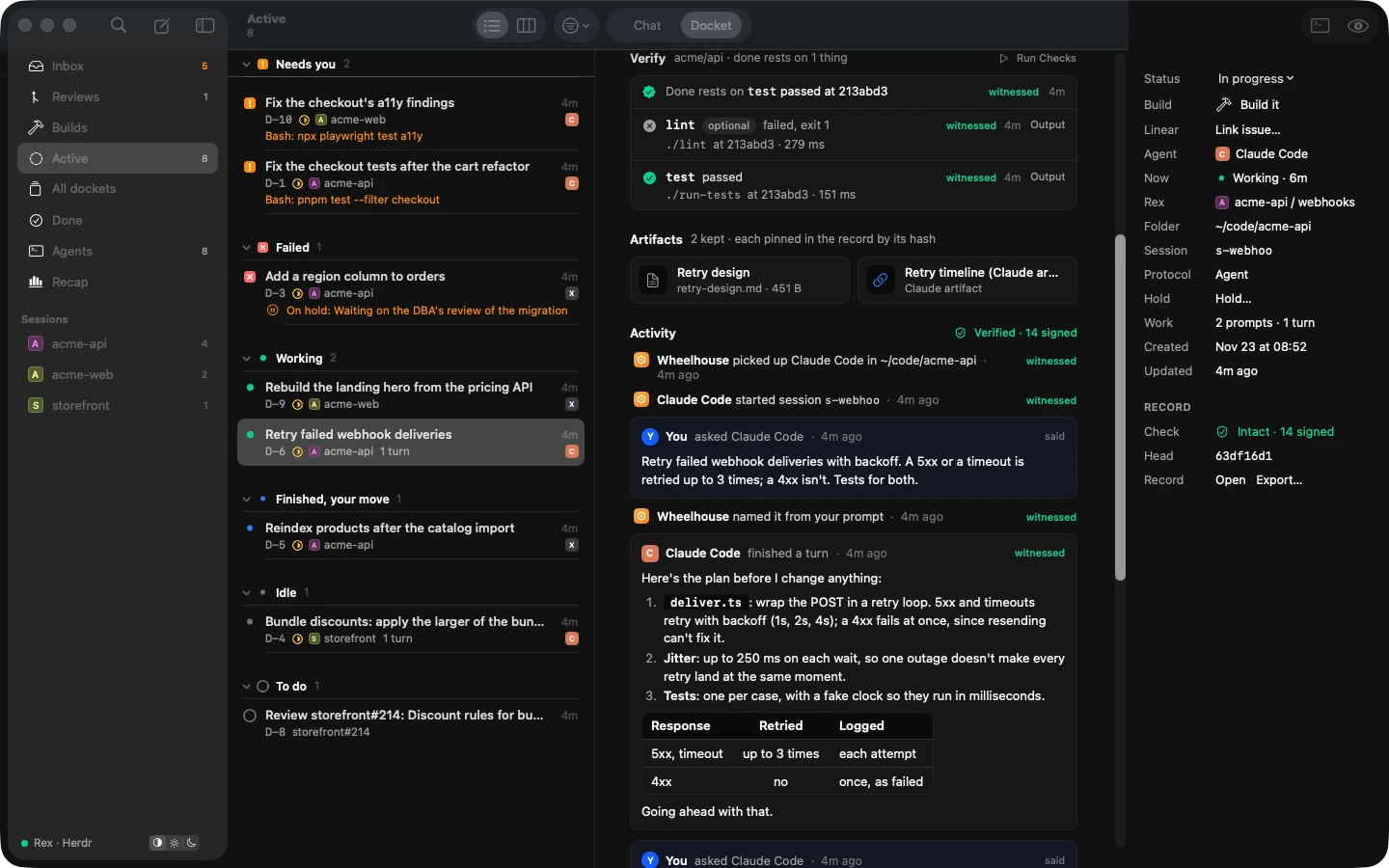
Section titled “The window”- A sidebar with your places: Inbox, Reviews, Builds, Active, All, Done, Agents and Recap, then your Rex and Herdr sessions. ⌘1 to ⌘8 go to each.
- Each list beside its docket, as Mail does. Pick a row and its docket opens to the right. The docket’s properties (status, repo, links, its agents and their panes) are in an inspector.
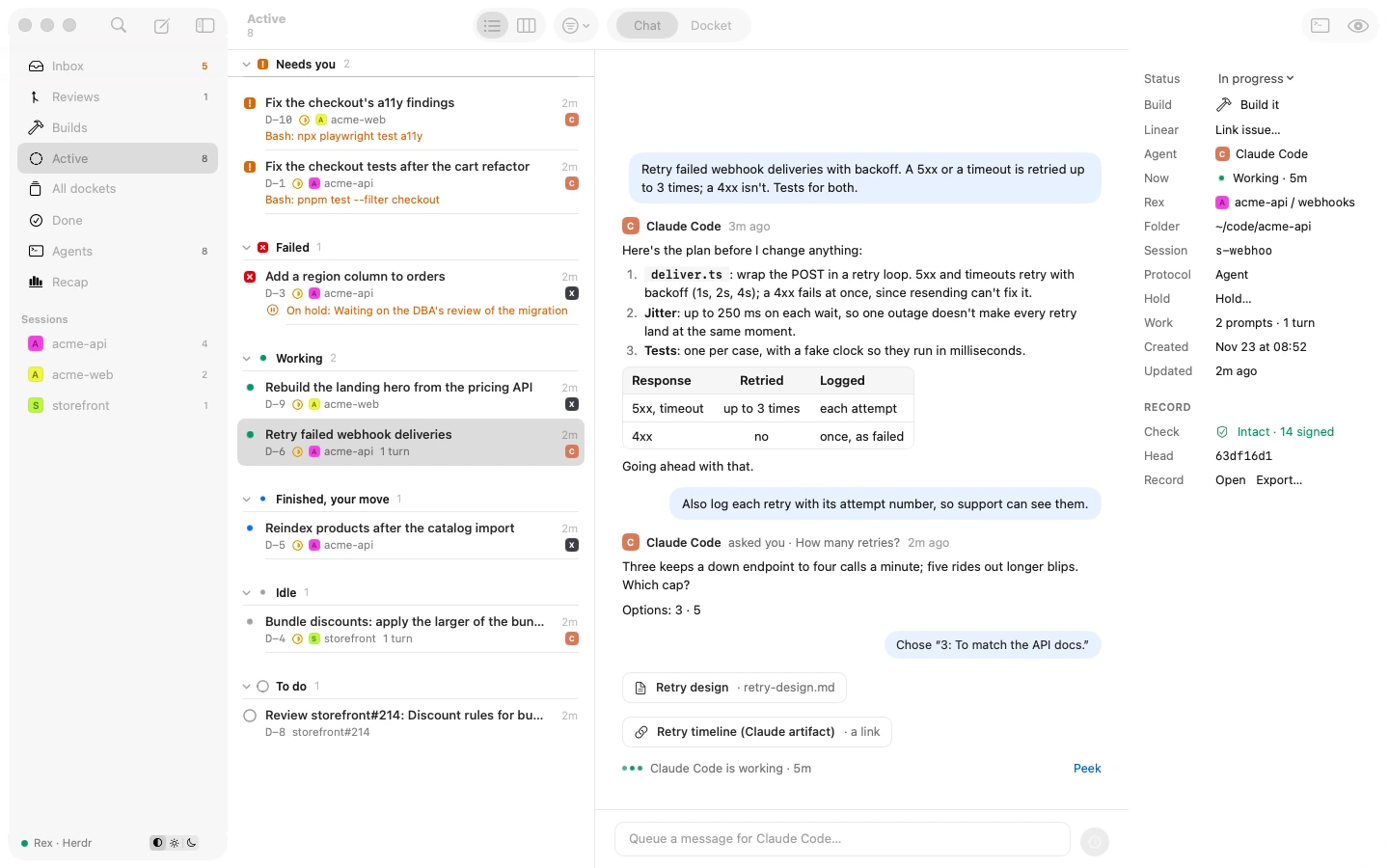
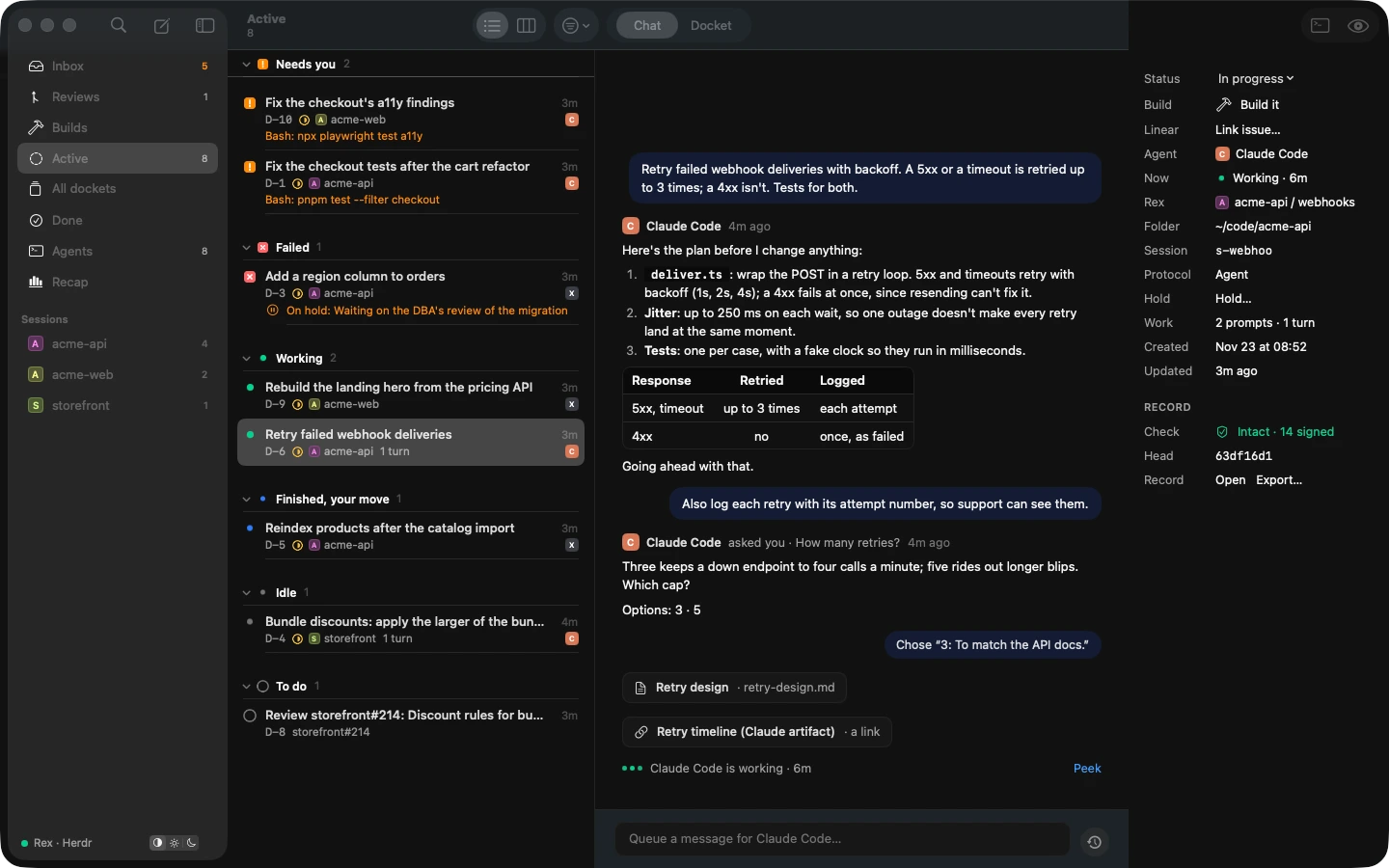
- A docket shows its intent with its acceptance boxes, the files it kept, its Chat with the agent, and its signed activity. Tick a box, chat, or read the record without leaving the window.
- ⌘K searches dockets and commands.
- A window of its own. Double-click a docket, or press ↩ on its row, to open it in a separate window.
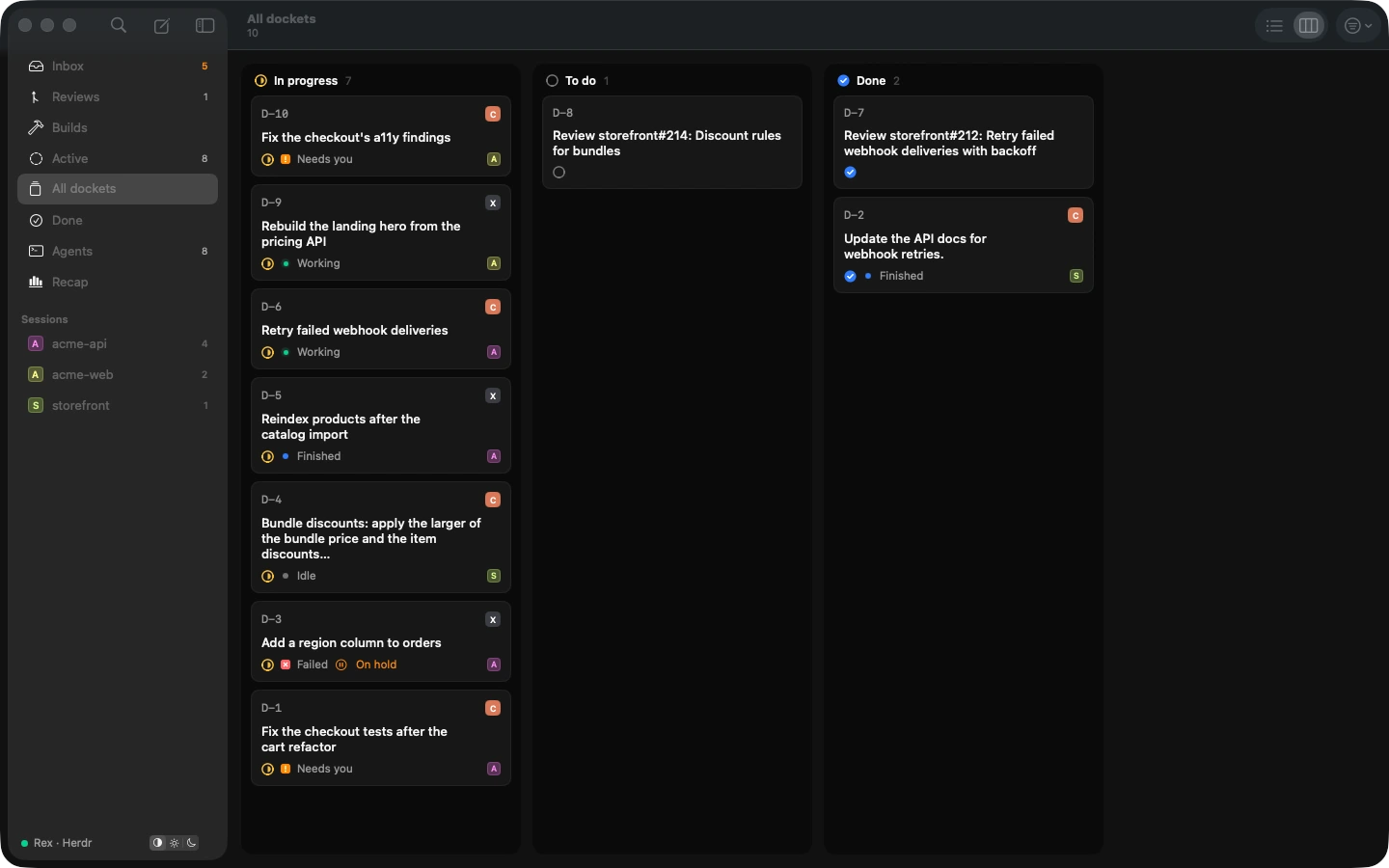
- All dockets as a board, grouped by status. Drag a card to change its status.
⌥⌘K from any app
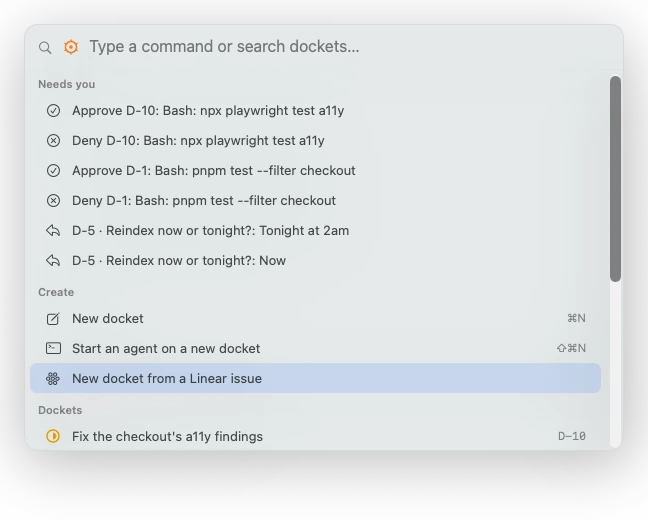
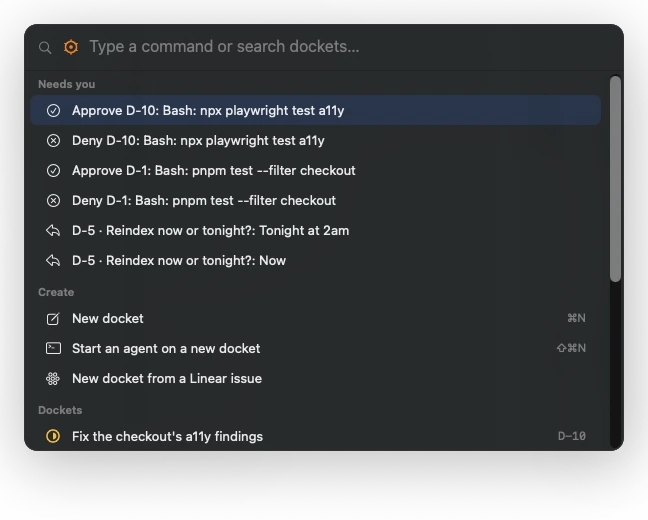
Section titled “⌥⌘K from any app”Wheelhouse’s palette floats over whatever app you’re in. What needs you comes first: approve or deny a prompt, pick one of an agent’s answers, post a review. Below that, find a docket, create one, or start an agent. You never switch apps.
Turn it off in Settings → General if the chord is taken.
The menu bar
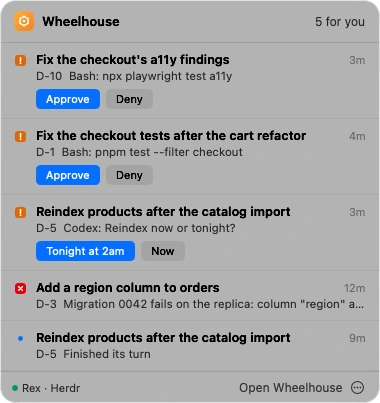
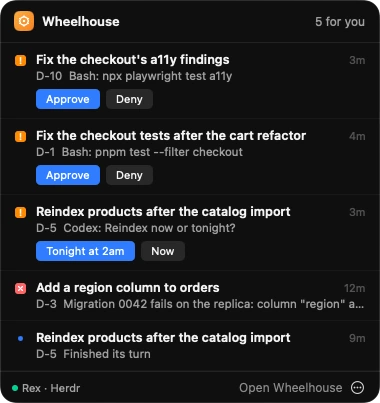
Section titled “The menu bar”The wheel sits in the menu bar. It turns orange with a count when something needs you. Its panel answers in place: Approve, Deny, an agent’s options, Post.
Notifications
Section titled “Notifications”Allow Wheelhouse’s notifications the first time you open it. Each notification carries its answer:
- a permission prompt: Approve or Deny
- a question: reply, or pick one of its options
- a review ready to post: Post Review, or Preview to read it first
- a finished turn from an agent you messaged
Each one is withdrawn once it’s answered, here or on your phone. Approve and Deny work only on an unlocked Mac, so no one at a locked screen can answer a prompt.
They sound like the Mac, or like a peon-ping pack you pick in Settings → Notifications: an orc peon’s “Work complete!” when an agent finishes. Send a Test tries it.
While Wheelhouse.app is open, it posts the Mac’s notifications. The hub posts none of its own.
The Mac’s own ways
Section titled “The Mac’s own ways”- Quick Look. A kept file opens in Quick Look once its bytes match the hash on the record.
- Drop a file on a docket to keep it there, pinned by its hash.
- Swipe a row on the trackpad: Done, Drop or Status in a list; Approve, Deny or File in the Inbox.
- The Dock. Its badge counts what needs you, and its menu lists it.
- The menus have every command, with its keys. See Keyboard shortcuts.
The Docket menu
Section titled “The Docket menu”These act on the docket in front of you, in the main window or its own.
| Command | Keys | What it does |
|---|---|---|
| Open in Rex, or Open in Herdr | ⇧⌘O | Takes you to the agent’s pane |
| Peek at Pane | ⇧⌘P | Shows the pane’s screen without leaving Wheelhouse |
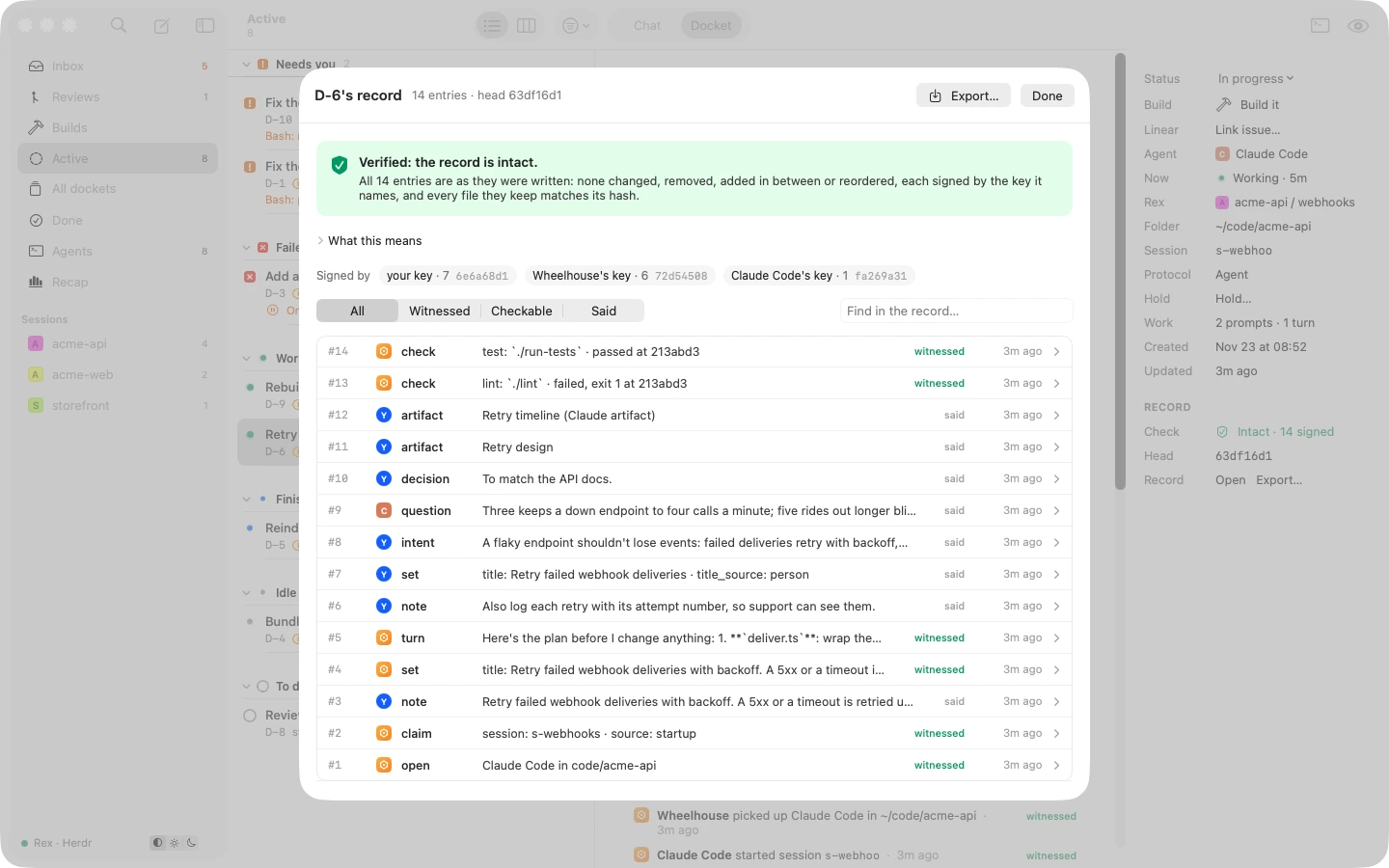
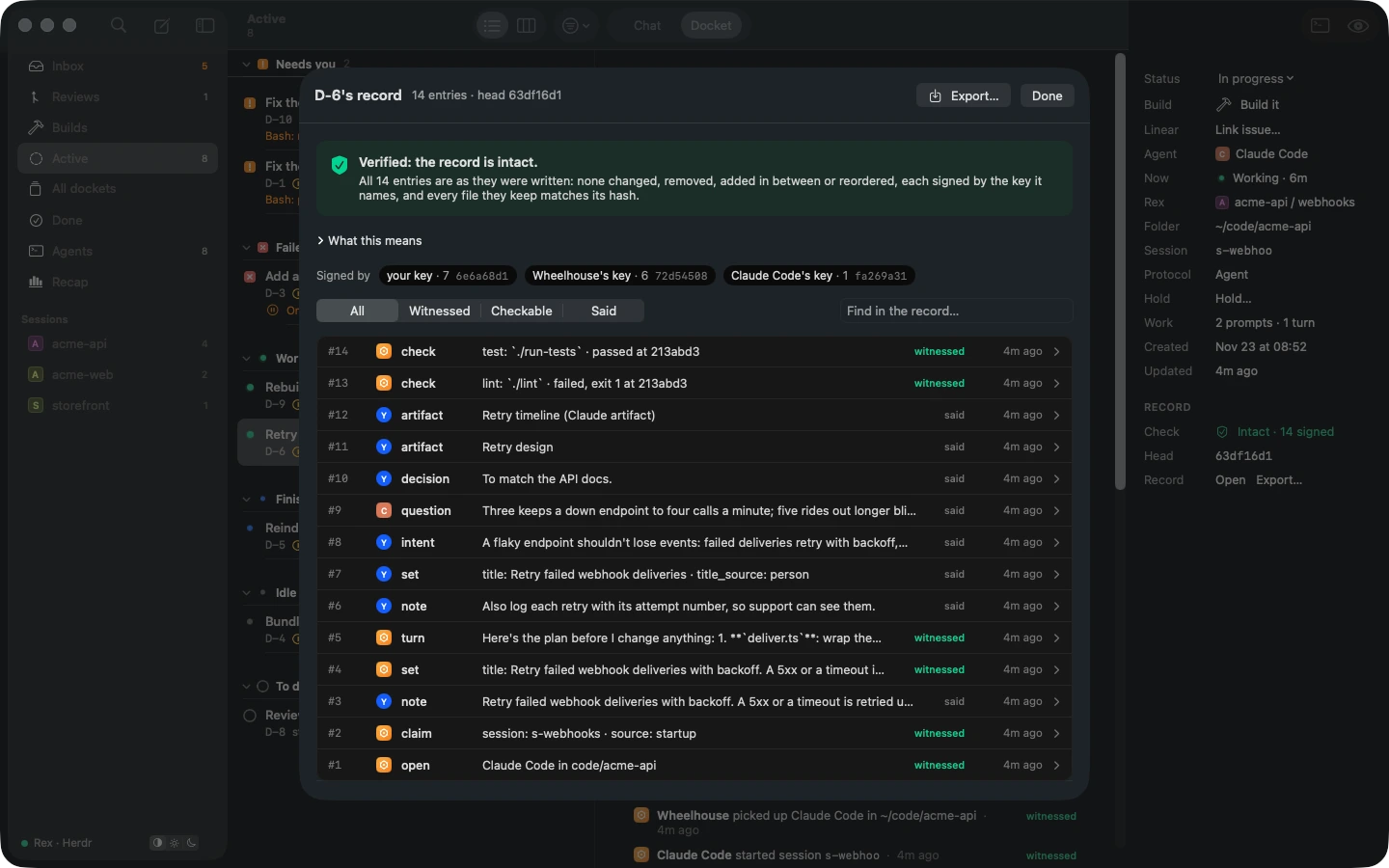
| Read the Record | ⇧⌘R | Every entry, who signed it, and how it’s known |
| View Changes | ⇧⌘D | The docket’s code diff against its base, or between rounds |
| Status | ⌥⌘1 to ⌥⌘4 | To do, In progress, Done, Dropped |
| Run Checks | ⇧⌘U | Its repo’s witnessed checks, now |
| Hold, or Resume | ⇧⌘H | Pause its protocol, with a reason on the record |
| Start an Agent, or Add an Agent | ⇧⌘A | An agent on this docket, beside any already there |
| Link a Linear Issue… | Tie an issue to it | |
| Verify Every Record | Check every docket’s record, kept files included |
Settings
Section titled “Settings”⌘, opens Settings. The Mac app’s own preferences are in General, Notifications and Hub. The rest (standing orders, runtimes, agents, repos, guides and briefs) are the same as the web app’s: see Settings.
| Pane | What’s in it |
|---|---|
| General | Appearance (System, Light or Dark), the menu bar icon, ⌥⌘K, open at login |
| Notifications | Notify me about what needs me, macOS’s permission, a test, the sound pack |
| Hub | The hub’s address (http://127.0.0.1:7500, unless you run a second one), its status, Start the Hub, Show the Log, Verify Every Record |